Settings
Language, appearance, memory, workspace, and other configuration
Click the gear icon in the bottom-left corner, then select Settings to open the settings panel.
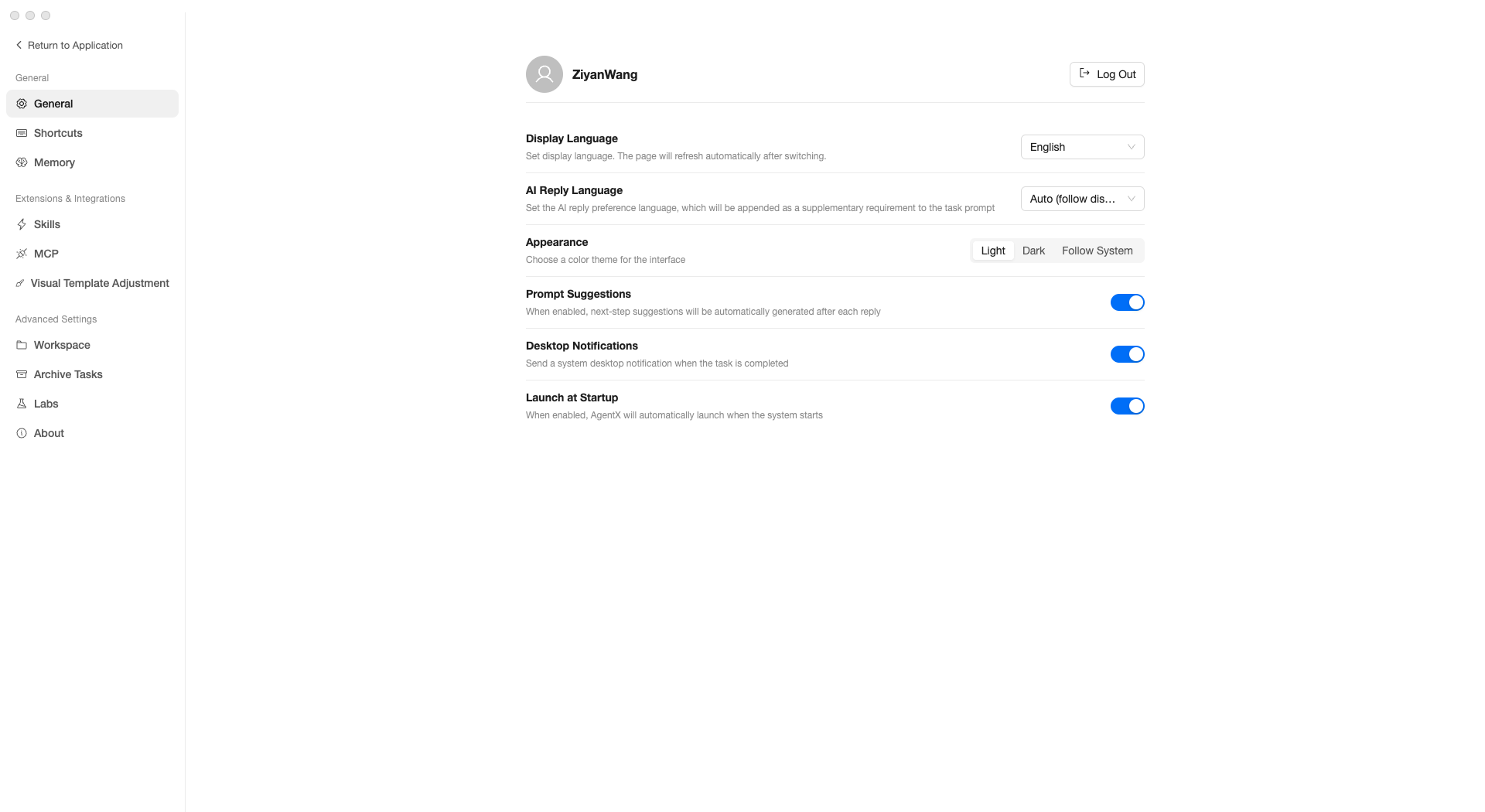
Settings are organized into three groups: General, Extensions & Integrations, and Advanced.
General
General
| Setting | Description |
|---|---|
| Display Language | Interface display language; switches take effect after automatic refresh |
| AI Reply Language | Language the AI uses in its replies |
| Appearance | Light / Dark / Follow system theme |
| Prompt Suggestions | When enabled, the AI suggests follow-up questions after each reply |
| Desktop Notifications | Show desktop notifications when tasks complete |
| Launch at Startup | Automatically start AgentX when the computer boots |
Shortcuts
View all available keyboard shortcuts for quick operations:
| Action | Shortcut |
|---|---|
| New conversation | Cmd + N |
| Open settings | Cmd + , |
| Toggle sidebar | Cmd + B |
| Toggle right panel | Cmd + \ |
| Send message | Enter |
| New line | Shift + Enter |
| Open skills panel | Type / |
Memory
The AI’s memory feature — preferences and information you share are remembered and automatically applied in future conversations.
- Add memory — Manually add information, e.g., “I manage outbound operations for the East China region”
- Edit — Modify existing memory entries
- Delete — Remove memories that are no longer needed
Extensions & Integrations
Skills
Manage all skills. See Skills for details.
MCP
Manage external tool connections. See External Tools (MCP) for details.
Advanced
Workspace
Manage the AI’s working directories. Each workspace corresponds to a folder on disk; files produced by the AI are saved in the corresponding workspace.
- You can set aliases for workspaces for easier identification
- Workspaces with no associated tasks can be deleted
Archive Tasks
Completed or no-longer-needed conversations are archived here:
- Unarchive — Restore to the normal conversation list
- Delete — Permanently delete (cannot be recovered)
- Batch cleanup — One-click delete archived tasks older than 7/30/90 days
Labs
Experimental features that you can freely toggle:
| Feature | Description |
|---|---|
| Sound effects | Play a notification sound when tasks complete |
| Inline file preview | Preview files in a side panel on click instead of opening a new window |
| Visual template customization | Customize the styling of Operations Dashboard reports |
About
View the current version number, plus:
- Check for updates — Manually check if a new version is available
- Product FAQ — Link to the frequently asked questions document
- Product introduction — Link to the product overview page