Operations Dashboard
View all work results on one page with visual reports
The Operations Dashboard is your “command center” — open this single page to see all your assistants’ work results. It periodically presents scheduled task execution results as visual reports.
First-Time Setup
Click Operations Workbench in the left sidebar to enter the dashboard:
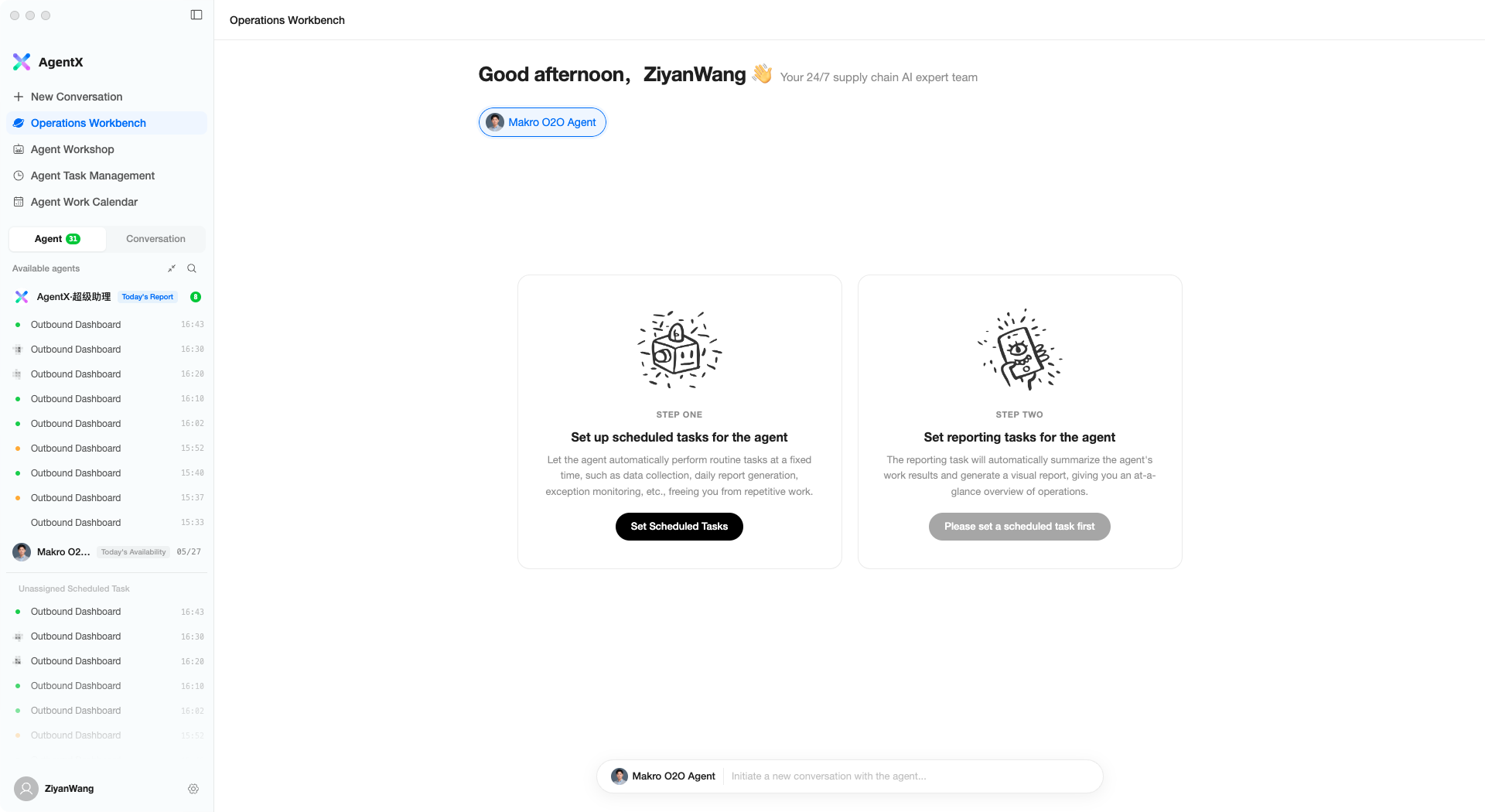
The first time you open it, the dashboard guides you through a two-step configuration:
- Set up scheduled tasks — First assign specific work to your assistants (see the “Scheduled Tasks” section)
- Set up report tasks — Then create report tasks so assistants organize work results into reports
Once both steps are complete, the dashboard automatically displays report content.
Daily Use
After configuration, open the dashboard each day to see all results:
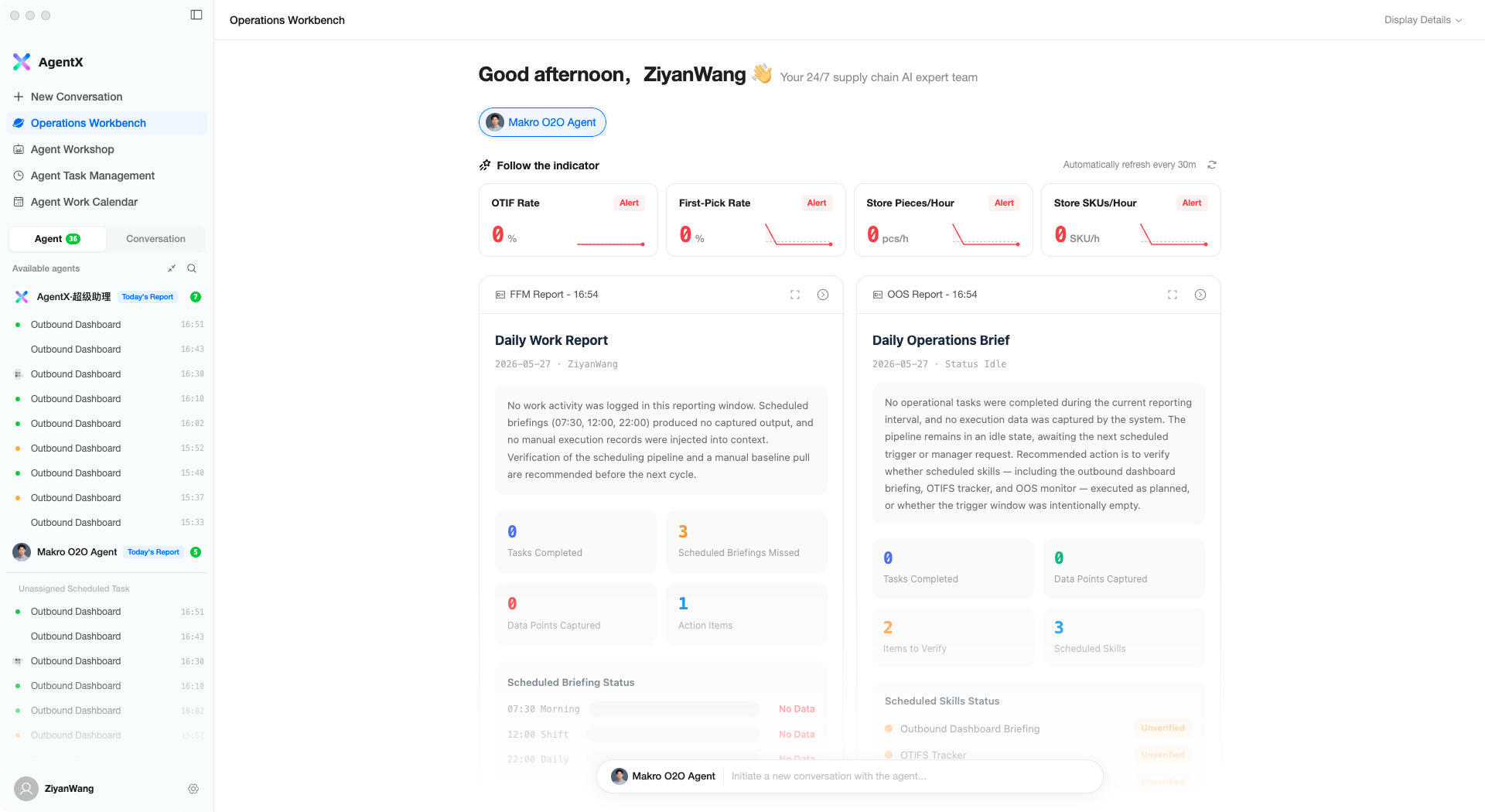
Assistant Tabs
The assistant tabs at the top let you switch between different assistants’ work results.
KPI Cards
If an assistant has metric monitoring configured, KPI cards appear at the top:
- Green — On target, everything is normal
- Yellow — Warning, needs attention
- Red — Alert, requires immediate action
Click “Refresh now” to manually update metric data.
Work Reports
Below are AI-generated visual report cards. Each card corresponds to one report task’s execution result:
- Reports display key data and findings in a rich text-and-visual format
- If historical reports exist, click the time label to switch between them
- Click “View report” to jump to the full conversation detail
Quick Chat
A quick conversation entry point at the bottom of the page lets you start a new conversation directly with the selected assistant — for example, to follow up on a detail in the report.
Typical Workflow
A common usage scenario:
- Open AgentX in the morning and go to the Operations Dashboard
- Check KPI cards for any anomalies (red/yellow indicators)
- Browse the AI-generated work reports to understand yesterday’s/today’s key data
- If something needs attention, ask the assistant directly using the input box at the bottom
- The entire process takes less than 5 minutes — your daily operations check is done
Tips
- Let it run a few days first — The dashboard depends on scheduled task results; newly configured tasks need time to accumulate data
- One assistant per set — Scheduled tasks + report task + dashboard display work best as an integrated set
- Keep KPI cards concise — Only display 3-5 core metrics that truly need daily monitoring; too many causes loss of focus