Skills
Manage assistant capabilities and add new skills
Skills are an assistant’s “toolbox” — whatever skills are installed determine what the assistant can do. For example, with the docx skill it can handle Word documents, and with the pdf skill it can analyze PDF files.
Managing Skills
Go to Settings > Skills to manage all skills:
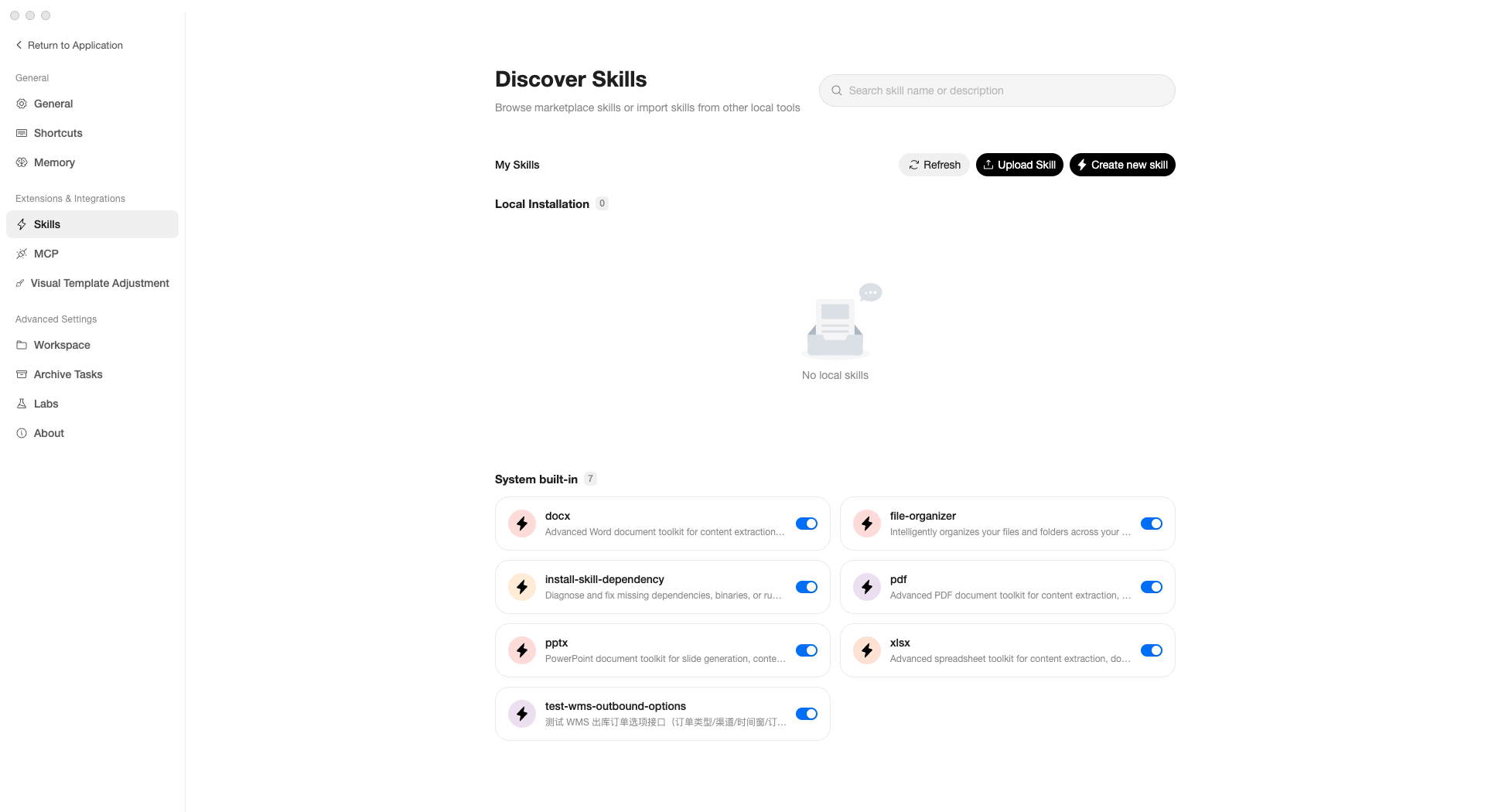
The page is divided into two areas:
Local Installation
Skills you have added yourself appear here. If you haven’t added any yet, this section will be empty.
Built-in
AgentX comes with essential built-in skills that work out of the box:
| Skill | Purpose |
|---|---|
| docx | Read and generate Word documents |
| xlsx | Analyze Excel spreadsheet data |
| pptx | Generate PowerPoint presentations |
| Read and process PDF files | |
| file-organizer | Intelligently organize files and folders |
Each skill has a toggle on the right side — turn it on to enable, turn it off to disable.
Adding New Skills
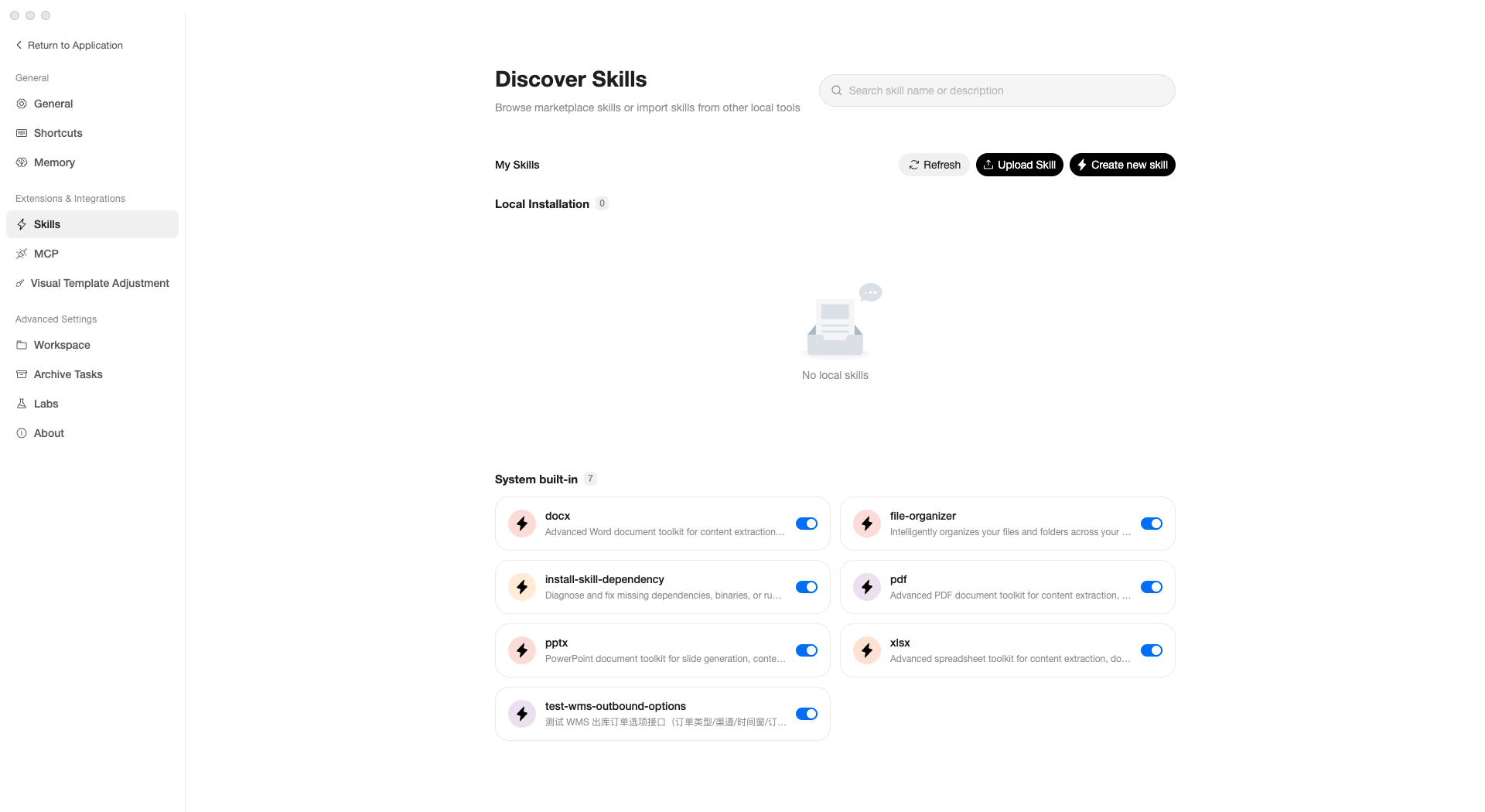
Three methods are available at the top of the page:
Upload Skill
Click Upload Skill and select a .zip file to import.
Note: Only
.zipformat is supported. The archive must contain a skill description file (SKILL.md).
AI-Guided Creation
Click Create new skill to start a conversation where the AI guides you through skill creation with 5 questions:
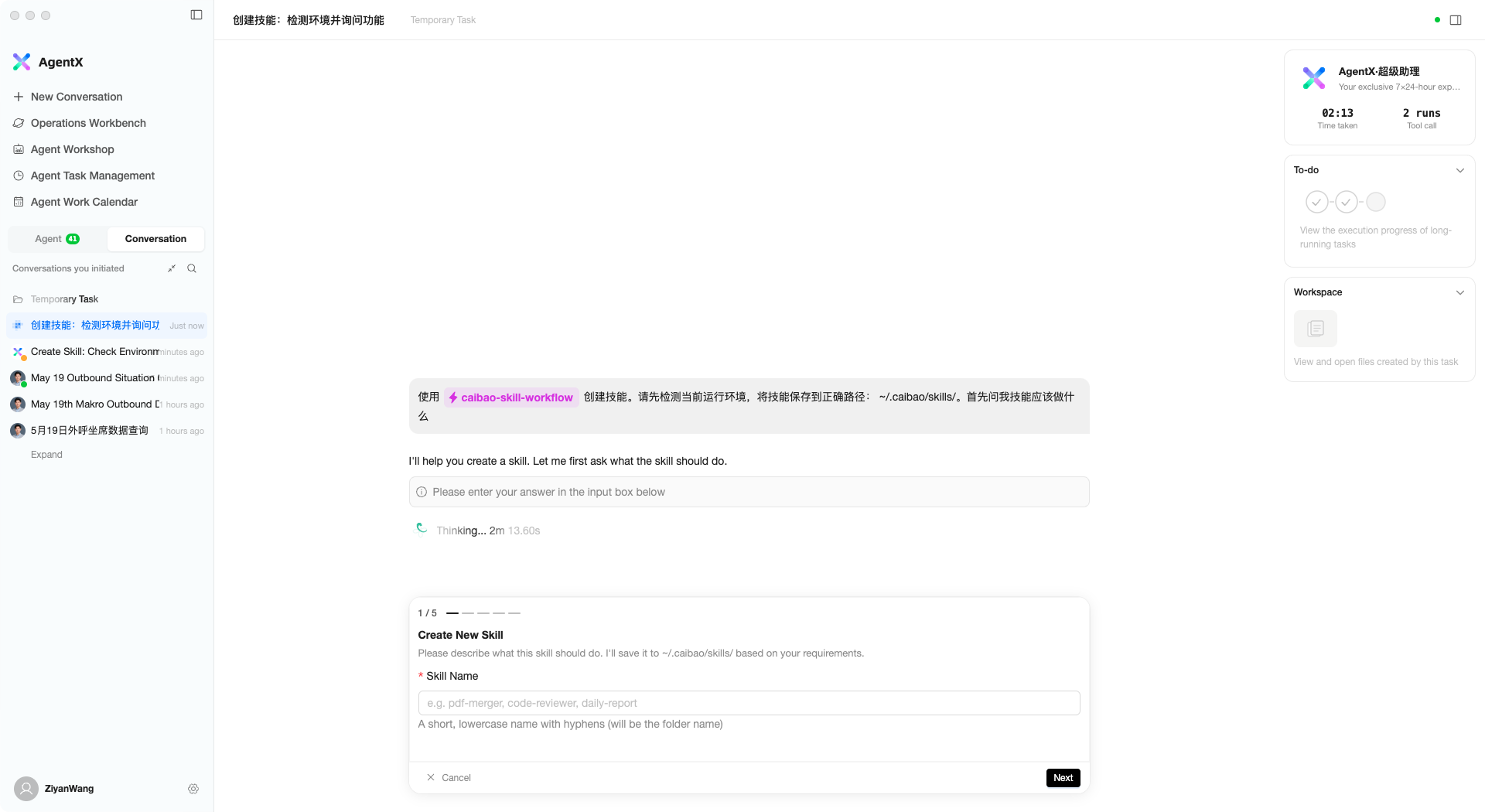
| Step | Question | Description |
|---|---|---|
| 1/5 | Skill Name | Give the skill a short English name (used as folder name) |
| 2/5 | What should this skill do? | Describe the skill’s functionality |
| 3/5 | When should this skill be triggered? | What scenarios should activate it |
| 4/5 | Workflow (Steps) | The skill’s execution steps |
| 5/5 | Extra resources needed | Whether additional resources are required |
After answering all questions, the AI automatically generates and saves the skill files. The entire process requires no coding.
From the Community
Visit ClawHub — a skill-sharing community with a wide selection of ready-made skill packages. How to use:
- Browse and download the skill you need from ClawHub (
.zipformat) - Return to AgentX and click Upload Skill to upload the downloaded file
- Once uploaded, the skill appears in the “Local Installation” area where you can enable it
Refresh
Click Refresh to rescan the skill list and discover newly installed skills.
Relationship Between Skills and Assistants
- Skills enabled on the Skills page are available to all assistants (the default assistant can use all enabled skills)
- When creating a custom assistant, you can select specific skills for that assistant only in Step 2
- A single skill can be shared across multiple assistants
Best Practices
- Start simple — the built-in skills already cover common document processing needs
- If you find an assistant lacks a certain capability (e.g., cannot read a specific format), add the corresponding skill
- When unsure which skills you need, ask the AI directly in a conversation — it will suggest which skills to enable