External Tools (MCP)
Connect browsers, messaging, and other external services
MCP (Model Context Protocol) enables AI assistants to connect to external tools and data sources. In simple terms, if you want your assistant to operate a browser, send message notifications, or connect to your company’s internal systems, you need MCP.
MCP Service List
Go to Settings > MCP to view and manage connected services:
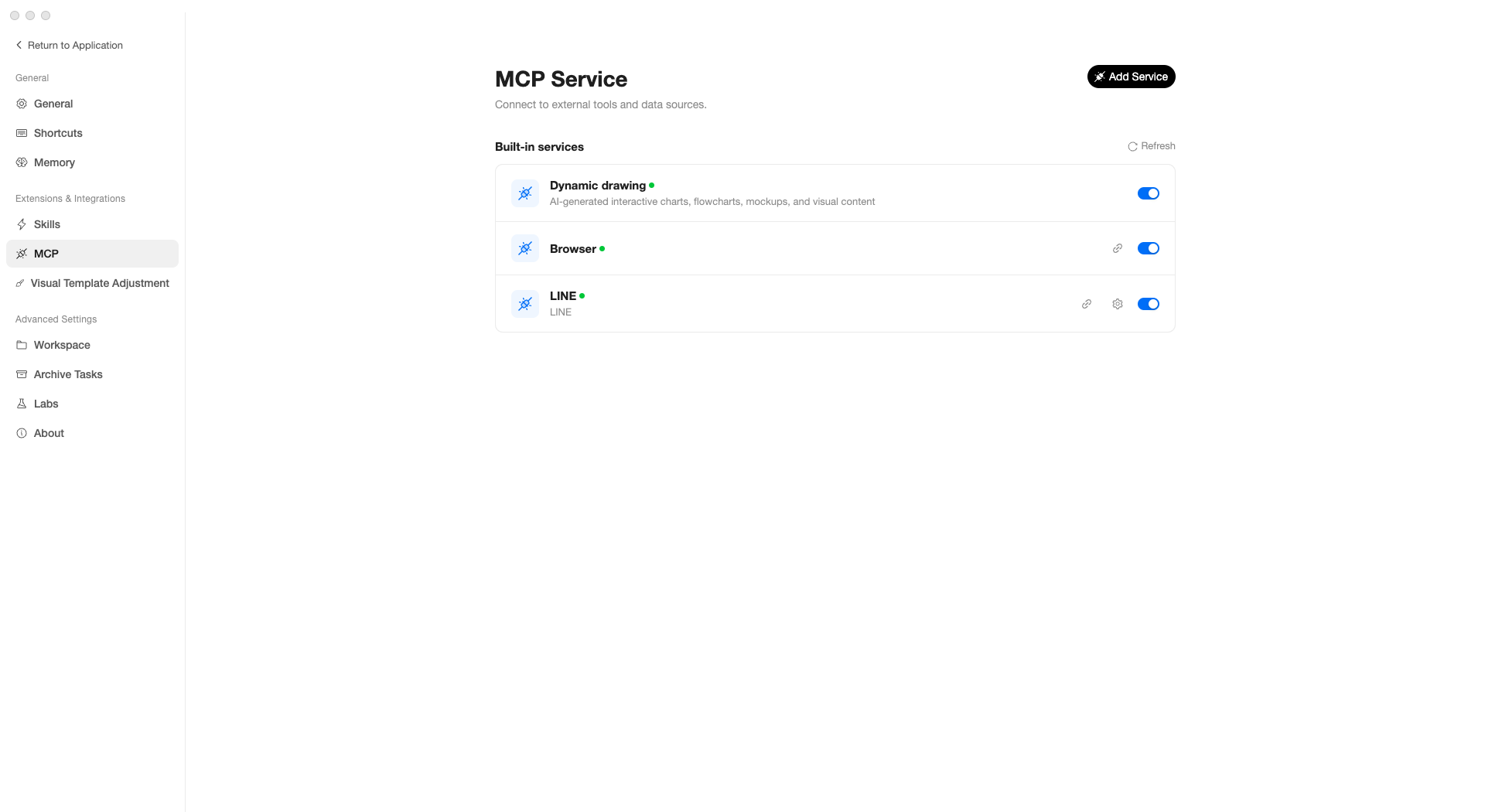
Built-in Services
AgentX includes several ready-to-use services:
| Service | Purpose |
|---|---|
| Dynamic drawing | AI generates charts, flowcharts, wireframes, and other visualizations |
| Browser | Lets the AI operate a browser — open pages, take screenshots, fill forms, extract information |
| LINE | Automatically pushes notifications to LINE when tasks complete |
- Green dot — Service is connected and working normally
- Toggle — Enable or disable the service
- Link icon — Click to test if the connection is working
Adding New Services
Click Add Service in the top-right corner. The dropdown menu offers two methods:
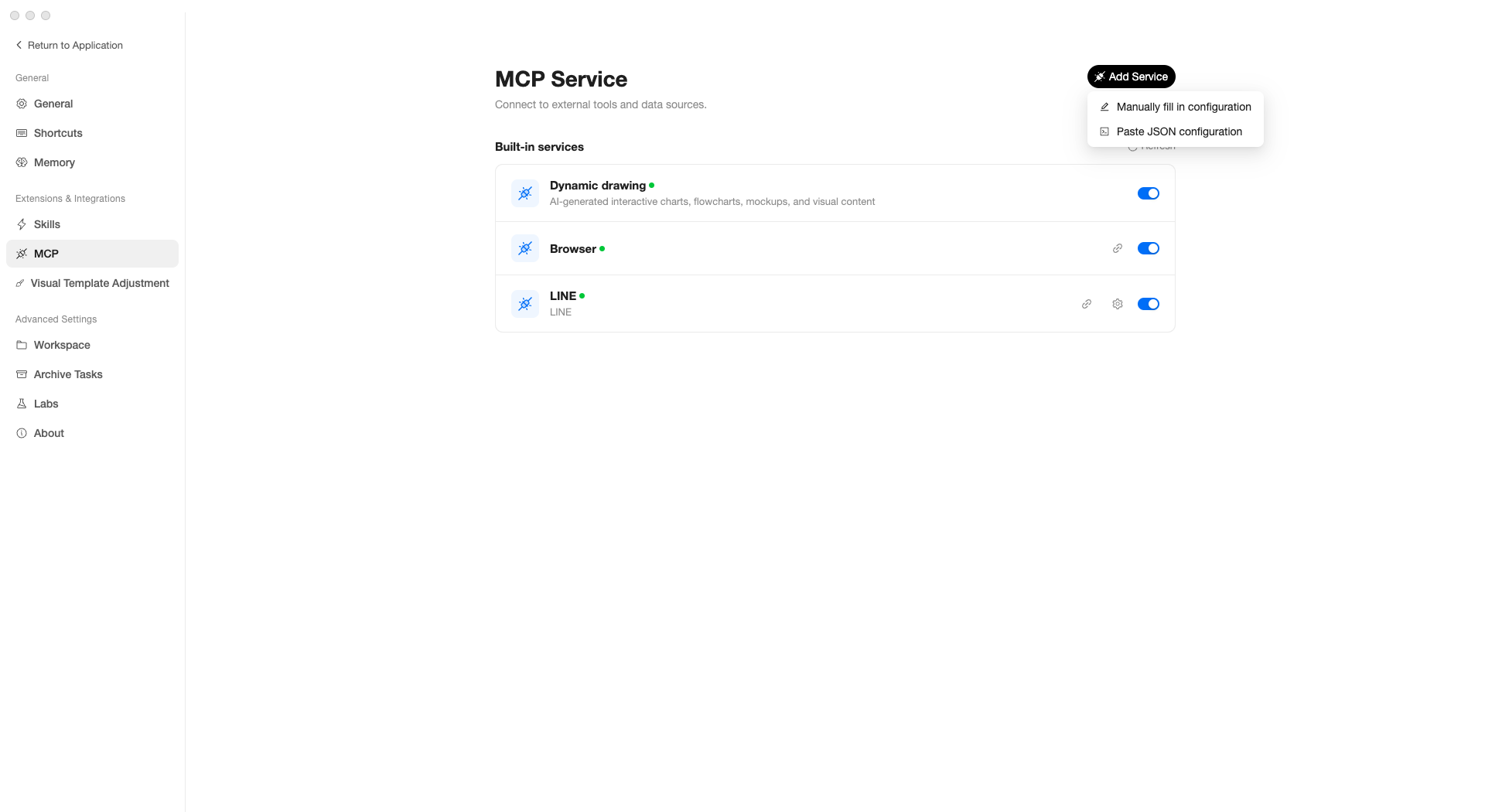
Manual Configuration
Select Manually fill in configuration to open the configuration form:
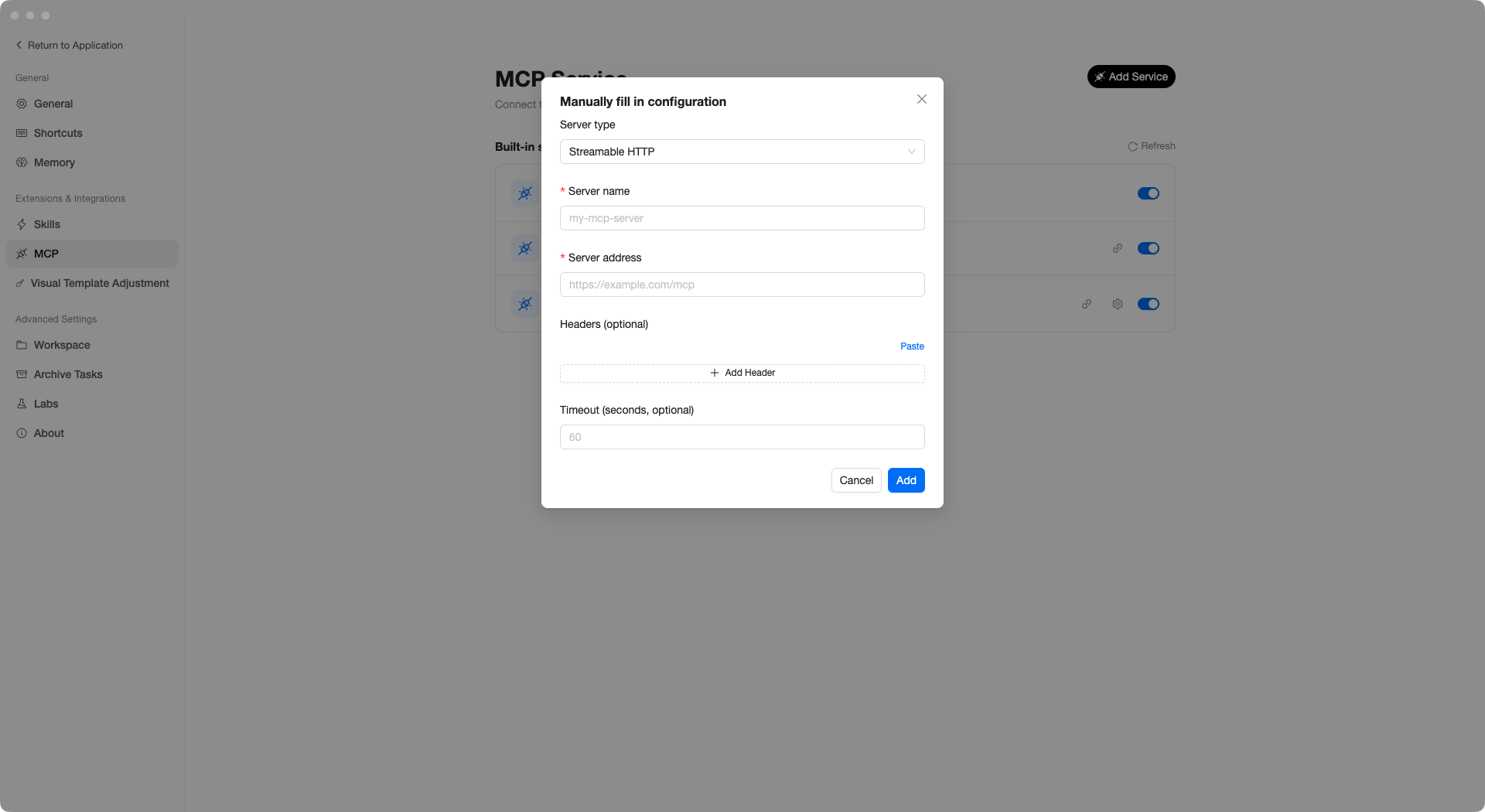
Fill in the following fields as needed:
- Server type — Service type (Streamable HTTP / SSE / STDIO)
- Server name — Give the service a name
- Server address — Service URL
- Headers — Request headers (optional, used for authentication, etc.)
- Timeout — Timeout duration, default 60 seconds
Click Add when done to complete the setup.
Paste JSON
Select Paste JSON configuration to open the JSON editor:
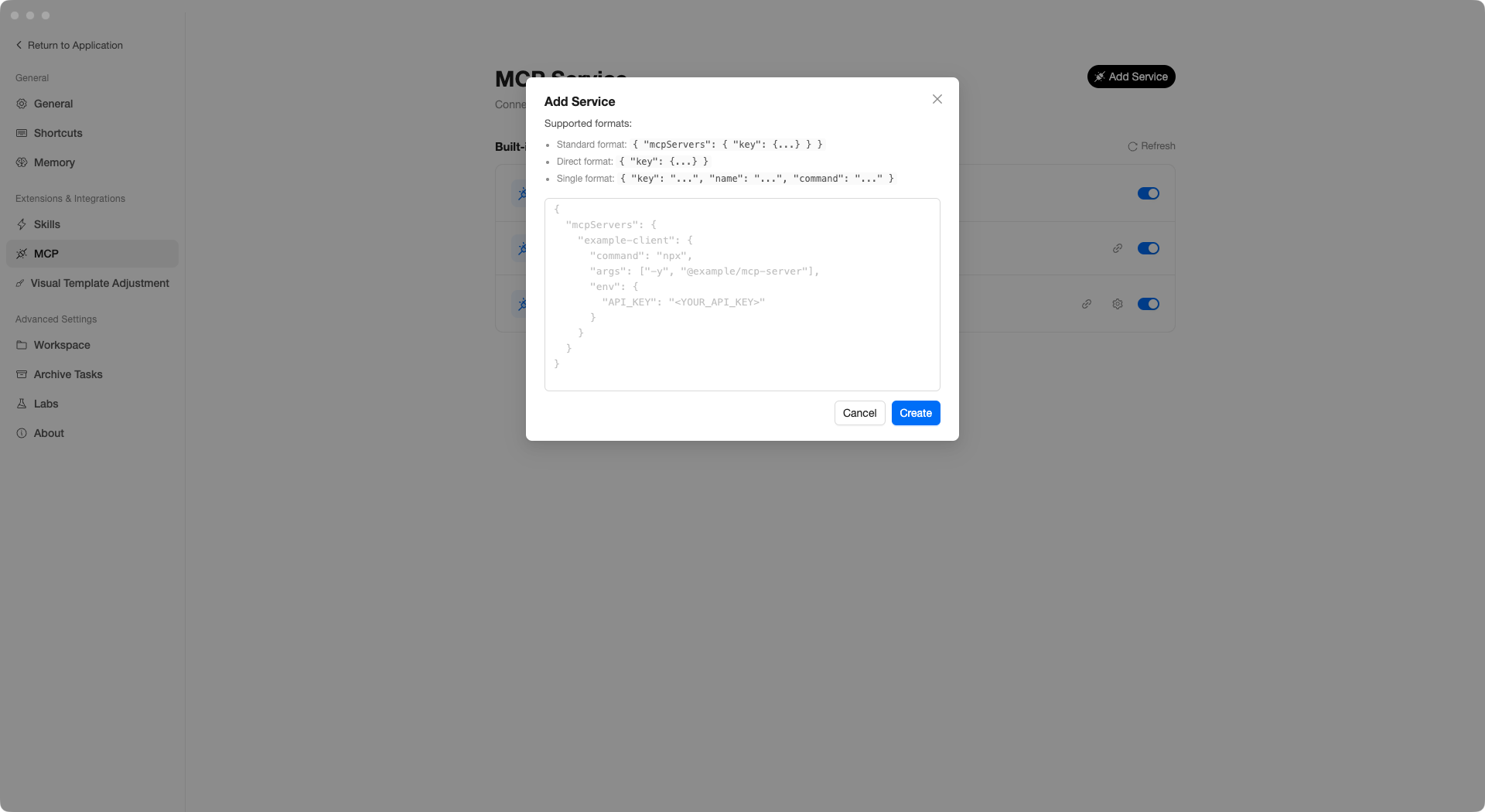
If your IT team or service provider has given you a JSON configuration snippet, paste it here and click Create to complete the setup — this is the fastest method.
The modal header also shows the three supported JSON formats; pasting in any of them will be recognized.
When You Need MCP
For most daily use, you do not need to configure MCP manually — the built-in services are sufficient. You may need to add services in these scenarios:
- Connecting to your company’s internal APIs or databases
- Having the AI operate specific third-party tools
- Your IT team has provided a new MCP service configuration
Tips
- If unsure whether you need configuration, try using the feature first. Set up MCP when the AI prompts you for authorization or connection
- If a service shows a red status dot, click the link icon to check the connection
- Turn off unused services to save resources
Note: MCP configuration is relatively technical. If you are unsure how to proceed, consult your IT team or software vendor for specific configuration details.