Scheduled Tasks & Calendar
Have assistants work automatically on a schedule and set up report tasks
Scheduled tasks are one of the most practical features in AgentX — set the time and instructions, and your assistant will automatically execute at the scheduled time every day. You just need to review the results.
Important: Scheduled tasks only run when your computer is awake. If the computer is asleep or shut down, tasks will be missed.
Task Management
Click Agent Task Management in the left sidebar to enter the task management page:
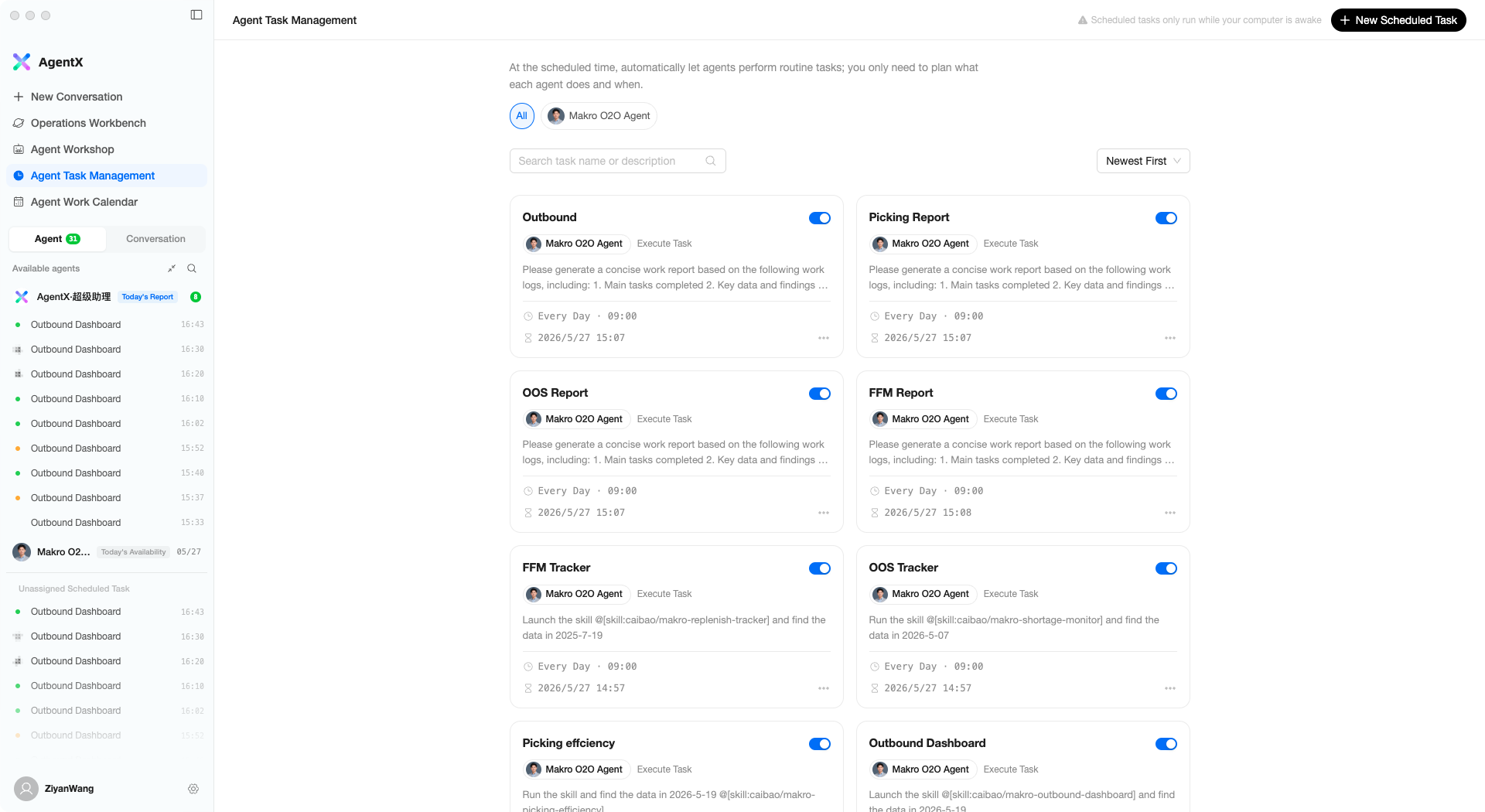
Page Layout
- Top — Filter by assistant (click an assistant’s avatar to view only their tasks)
- Search bar — Search tasks by name
- Task cards — One card per scheduled task, showing name, executing assistant, execution time, and frequency
Task Card Actions
- Toggle — Pause or resume a task
- Click card — Open for editing
- … menu — Execute now / Duplicate / Edit / Delete
Creating a Scheduled Task
Click + New Scheduled Task in the top-right corner to open the creation dialog:
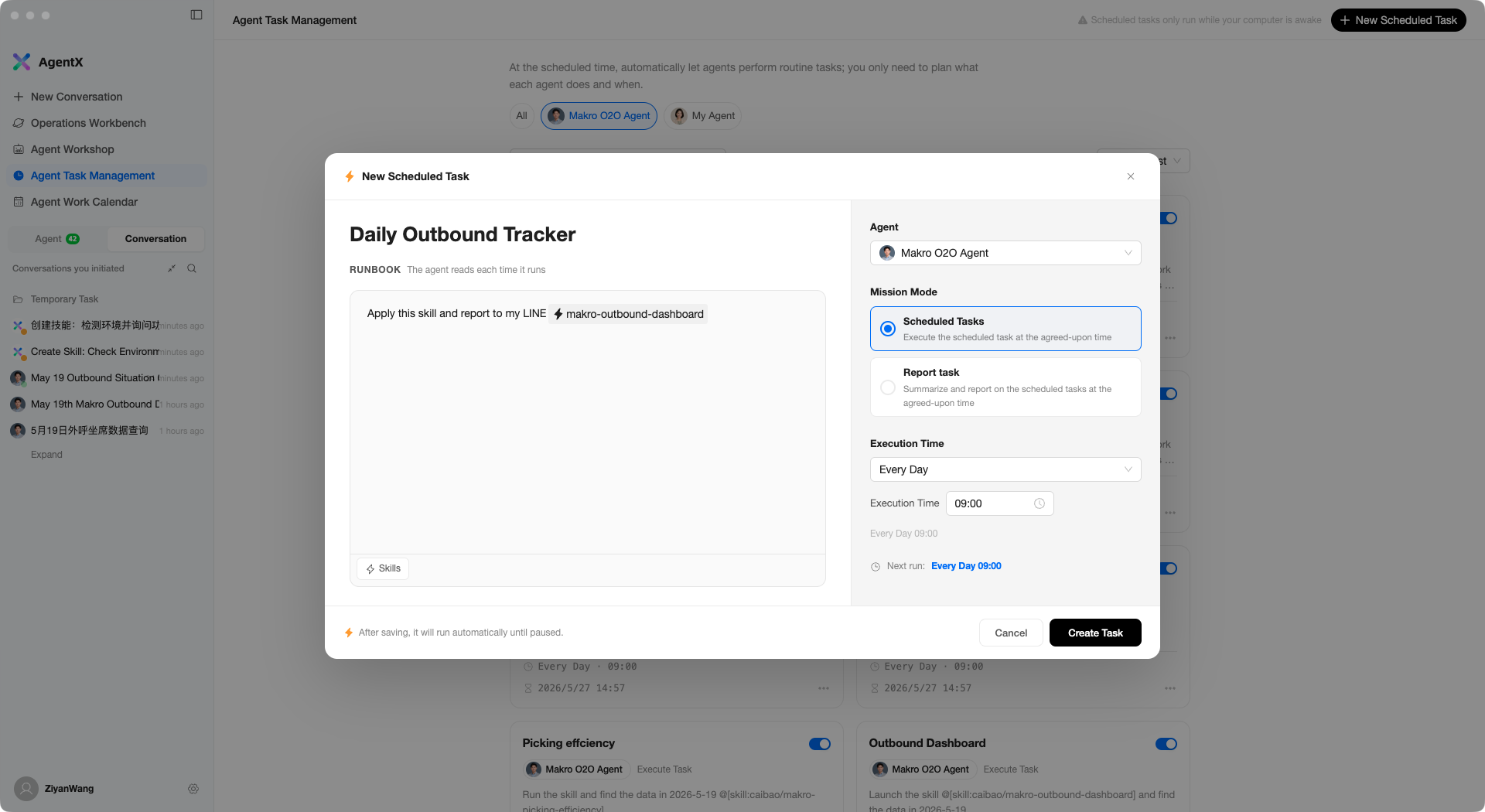
Left Panel: Task Content
- Task title — Large text input at the top, e.g., “Daily Outbound Tracker”
- RUNBOOK instructions — The instructions the assistant reads each time it runs. The clearer you write them, the better the execution. You can use skills (click the Skills button at the bottom to insert)
Right Panel: Execution Configuration
- Agent — Select which assistant will execute the task
- Mission Mode — Scheduled Tasks or Report task
- Execution Time — Choose the execution frequency:
| Frequency | Description |
|---|---|
| No repeat | Execute once only; select a specific date and time |
| Every Day | Execute at a fixed time daily |
| Weekdays | Execute Monday through Friday |
| Every Week | Select which day of the week |
| Every Month | Execute on a specific day each month |
| Fixed interval | Execute every N minutes/hours |
The bottom displays a preview of the next run time (e.g., “Next run: Every Day 09:00”). Once confirmed, click Create Task to finish.
After saving, the task automatically begins running on schedule until you manually pause it.
Report Tasks
A report task is a special type of scheduled task — instead of doing specific work, it summarizes the execution results of other tasks and generates a work report.
Use Case
You have multiple scheduled tasks running (e.g., outbound tracking, inventory checks, anomaly monitoring) and want to receive a consolidated daily report rather than checking each task’s results individually.
How to Create
When creating a new task, select Report task for Mission Mode:
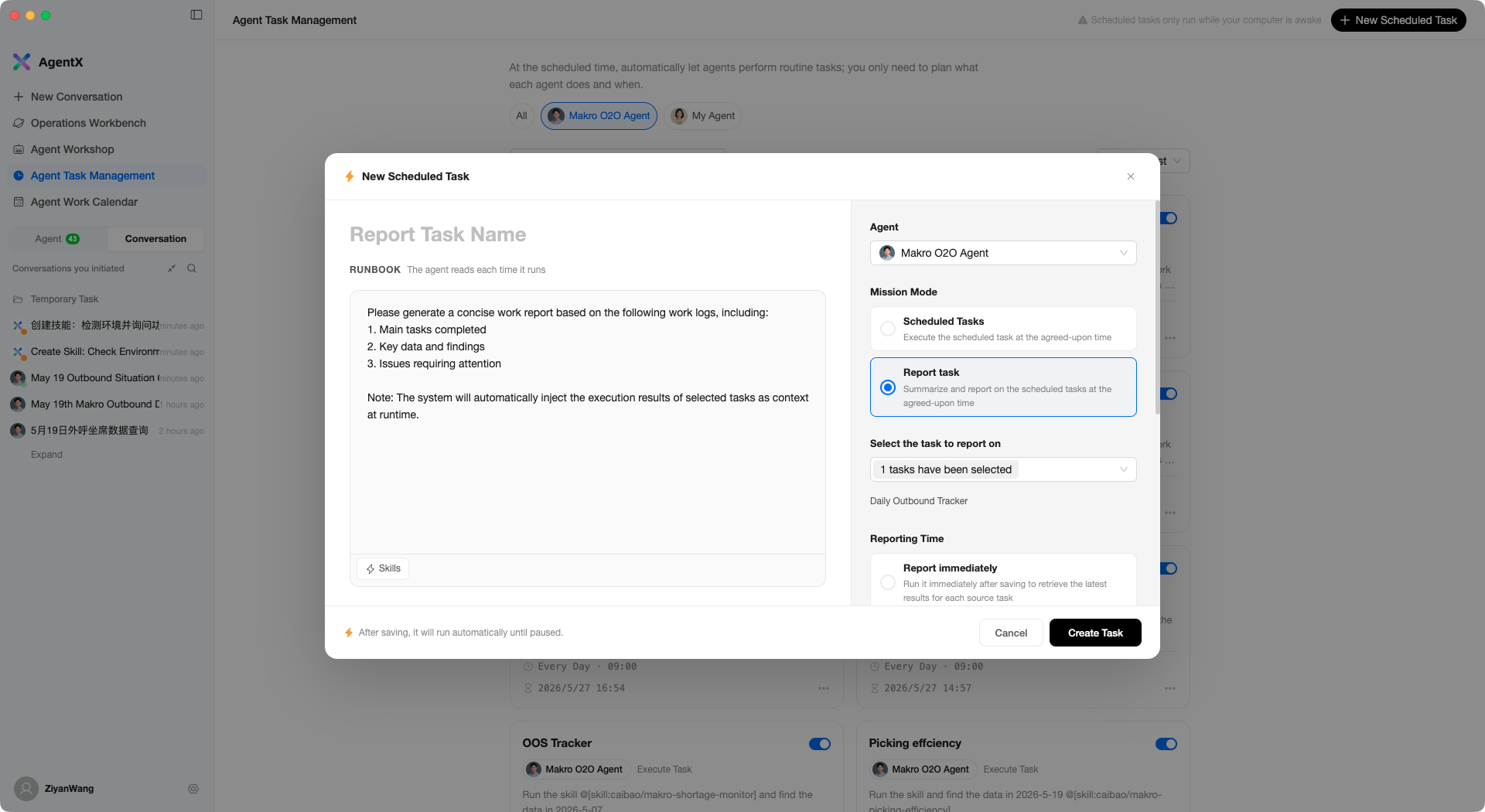
Differences from regular scheduled tasks:
- Select the task to report on — Choose which scheduled tasks’ results to summarize
- Report Time — When to generate the report (Report immediately / on a schedule)
- The left panel instructions are pre-filled with a report template; the AI will organize report content following the template format
After creation, the system automatically reads the associated tasks’ execution results and generates a structured work report.
Work Calendar
Click Agent Work Calendar in the left sidebar to view execution history:
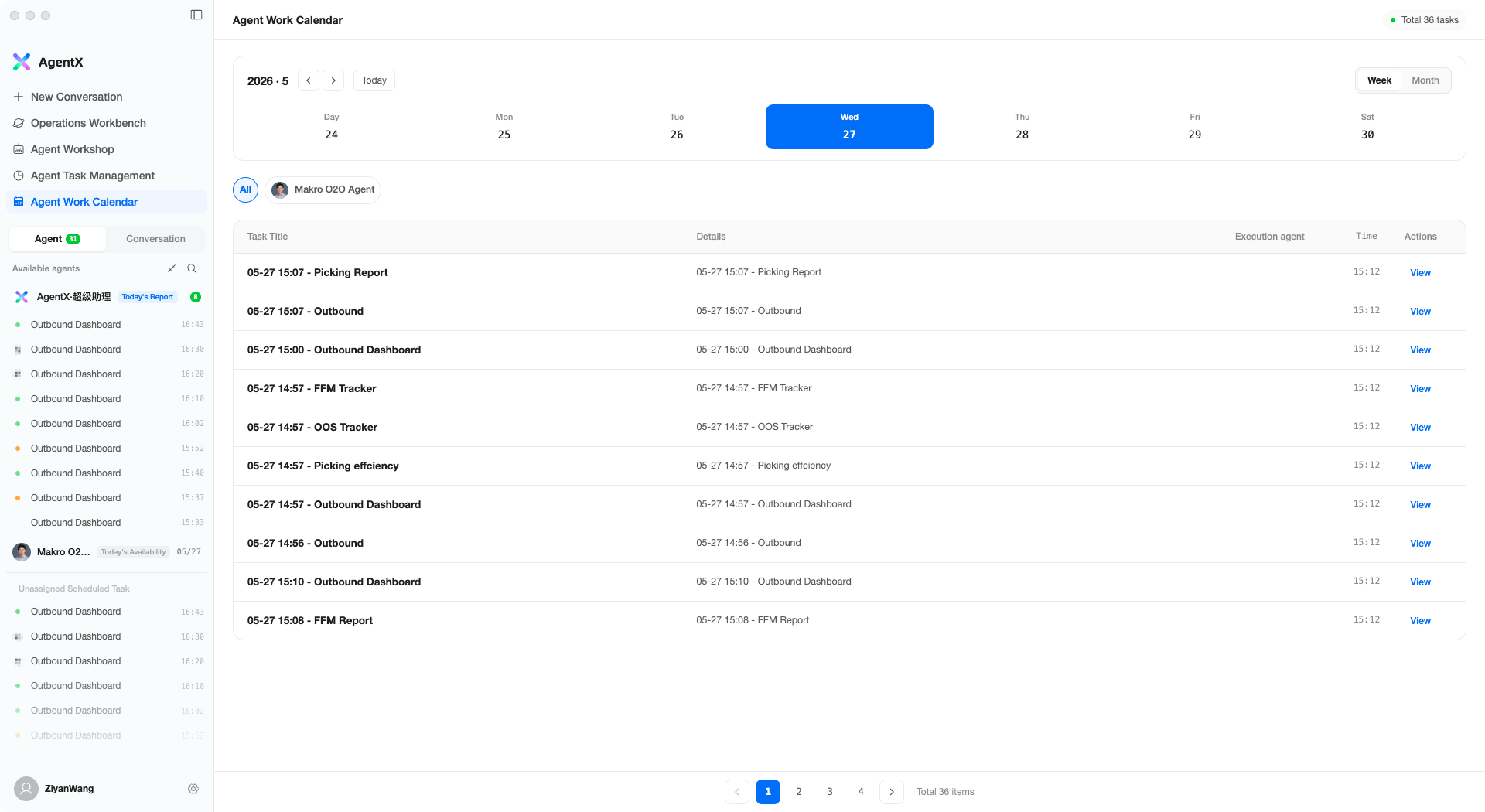
The calendar displays task execution records in a weekly view:
- Top calendar — Switch dates; today is highlighted
- Task table — Lists all execution records for the selected date
- Click a task — Jump to that execution’s conversation detail to view full content
You can filter by assistant to view only a specific assistant’s execution records.
Tips
- Write specific instructions — “Analyze today’s outbound completion rate; flag in red if below 95%” is far more effective than “Check the outbound situation”
- Set appropriate timing — Data-related tasks should run after data is available (e.g., outbound data is typically complete in the afternoon)
- Combine with report tasks — Multiple execution tasks plus one report task is the most efficient workflow
- Keep the computer awake — If tasks run in the early morning, make sure the computer does not auto-sleep